
In this article, we will explain you more about how you can add Comments.
ℹ️ These Comments are displayed at the very end of PDF after Grand Total Amount.
The steps mentioned below for adding comments are similar to Estimate, Purchase Order, and Credit Note.
iOS and Android #
- Tap on ☰ to open the side menu.
- Tap on 📂 Invoice.
- Tap on an Invoice.
- Tap on ✏️ Edit
- For adding comments tap on Comments.
- Enter your comments.
- Tap on Show on PDF checkbox if you want those comments to appear on Invoice PDF.
- Tap on [icon name=”floppy-o” class=”” unprefixed_class=””] Save.
- Tap on [icon name=”file-pdf-o” class=”” unprefixed_class=””] to preview Invoice PDF.
Mac #
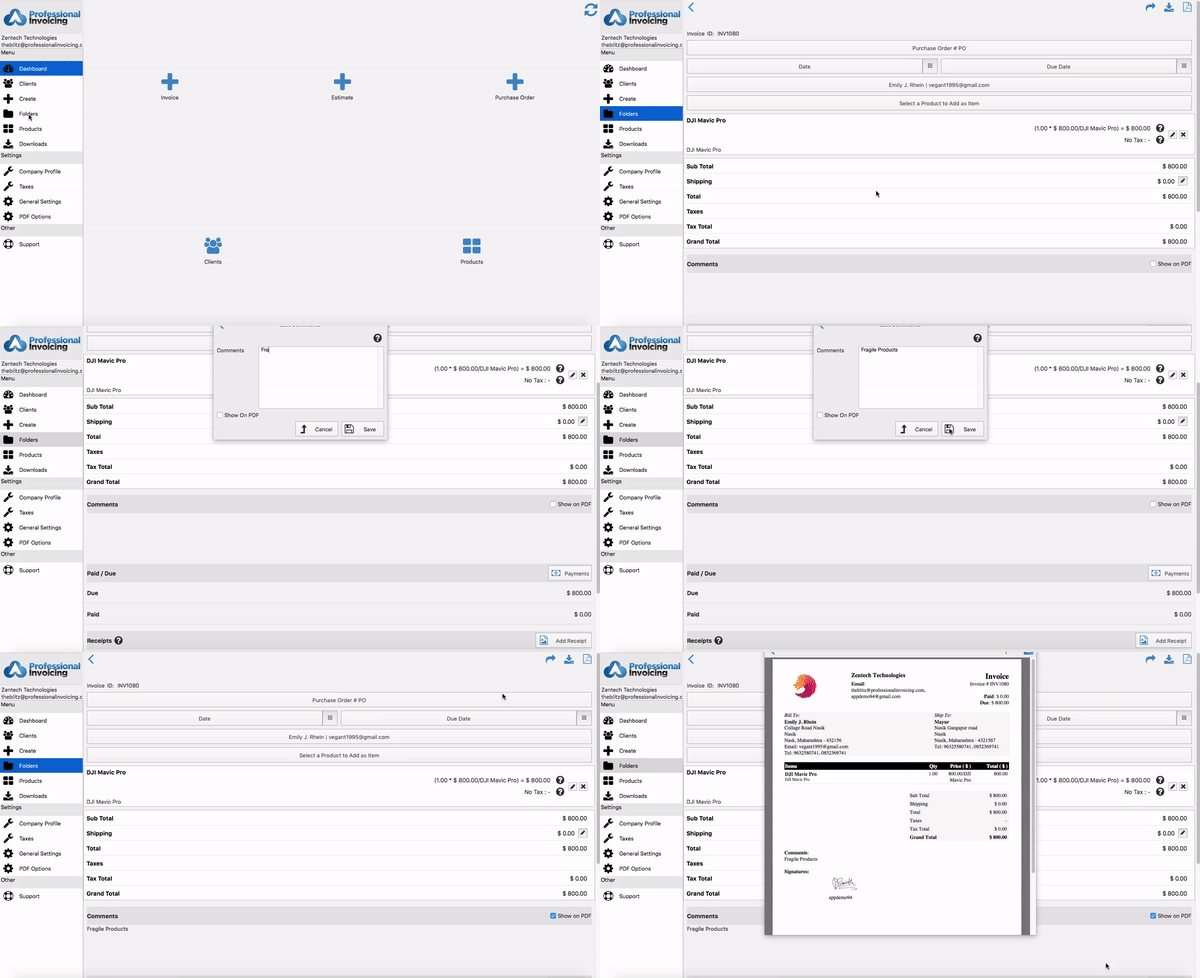
- Click on 📁 Folders from side menu.
- Click on the ✏️ button of an Invoice to open that Invoice.
- For adding comments click on Comments.
- Enter your comments.
- Click on Show on PDF checkbox if you want those comments to appear on Invoice PDF.
- Click [icon name=”floppy-o” class=”” unprefixed_class=””] Save.
- Click on [icon name=”file-pdf-o” class=”” unprefixed_class=””] to preview Invoice PDF.
Web #
- Click on 📁 Folders from side menu.
- Click on 📂All Folders or 📂 Invoice.
- Click on ☰ button of an Invoice and then click on ✏️ Edit.
- For adding comments click on Comments.
- Enter your comments.
- Click on Show on PDF checkbox if you want those comments to appear on Invoice PDF.
- Click [icon name=”floppy-o” class=”” unprefixed_class=””] Save.
- Click on [icon name=”file-pdf-o” class=”” unprefixed_class=””] to preview Invoice PDF.
Have more queries? Contact us


